
Master Illustrator: 10 Shortcuts to Supercharge Your Design Workflow
Discover how mastering key Adobe Illustrator keyboard shortcuts can revolutionize your design process, saving you precious time and boosting your creative output. These essential tips are perfect for designers at any skill level.
By Rollan Bañez · September 28, 2026 · 7 min read
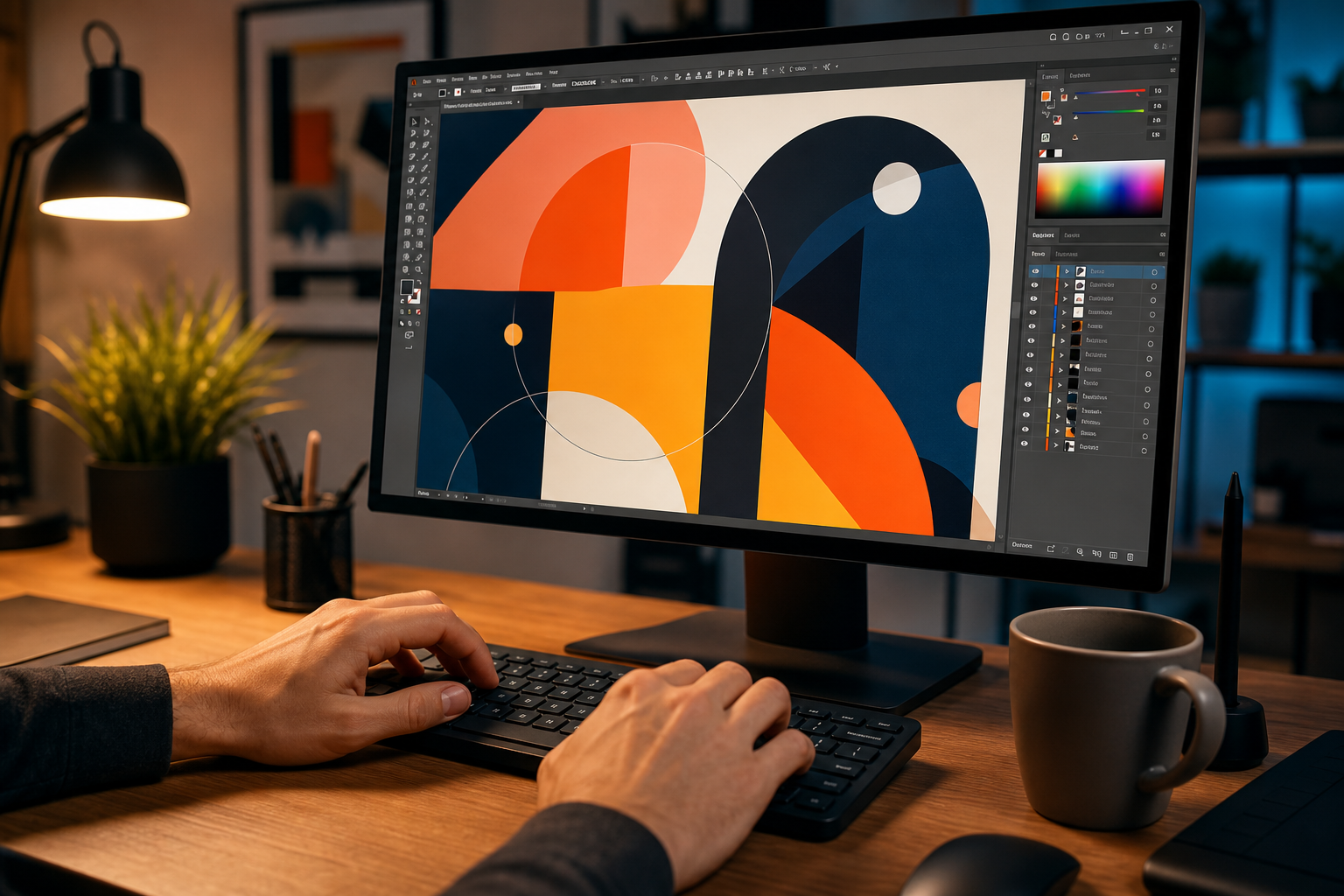
In the fast-paced world of graphic design, efficiency is not just a luxury—it's a necessity. Every second counts, especially when juggling multiple projects or meeting tight deadlines. Adobe Illustrator, a powerhouse for vector graphics, offers an incredible array of tools, but its true potential is unlocked through mastery of its keyboard shortcuts.
These Illustrator keyboard shortcuts are more than just conveniences; they are productivity multipliers. They transform tedious multi-click operations into swift, instinctual actions, allowing designers to maintain creative flow and focus solely on their artistic vision. From selecting objects to transforming shapes, these shortcuts streamline your workflow dramatically.
Why Keyboard Shortcuts Are Non-Negotiable for Designers
For both seasoned professionals and aspiring designers, embracing keyboard shortcuts is a fundamental step toward professional growth. Navigating menus with a mouse disrupts concentration, breaking the creative rhythm. Shortcuts keep your eyes on the canvas and your hands engaged, fostering a seamless design experience.
The impact extends beyond mere speed. Enhanced efficiency frees up valuable time, enabling designers to explore more creative iterations, refine details, and deliver higher-quality work. It’s a foundational skill taught in comprehensive Adobe Certified Professional training programs, recognizing its critical role in modern design.
Essential Illustrator Keyboard Shortcuts You Need to Master
Ready to supercharge your design process? Here are 10 fundamental Illustrator keyboard shortcuts that will immediately impact your efficiency and help you navigate the software like a pro. Incorporating these into your daily routine will feel natural in no time.
1. Switch Between Selection Tools (V, A)
- V (Selection Tool): This is your primary tool for selecting entire objects, moving them, and basic resizing. It's the most used tool in Illustrator, making its shortcut indispensable.
- A (Direct Selection Tool): Use this to select anchor points, paths, and handles within an object. It's crucial for fine-tuning shapes and editing specific segments.
Seamlessly switching between these two tools is paramount for precise editing and general object manipulation. It saves countless trips to the toolbar, keeping your focus on the artwork.
2. Group and Ungroup Objects (Ctrl/Cmd + G, Shift + Ctrl/Cmd + G)
- Ctrl/Cmd + G (Group): Combine multiple selected objects into a single group. This allows you to move, scale, or transform them together, maintaining their relative positions.
- Shift + Ctrl/Cmd + G (Ungroup): Separate a selected group of objects back into individual components. This is vital for making edits to specific elements within a grouped composition.
Grouping is essential for organizing complex designs and managing multiple elements efficiently. It streamlines the entire layout process, preventing accidental movement of individual components.
3. Zoom In and Out (Ctrl/Cmd + Plus (+), Ctrl/Cmd + Minus (-))
- Ctrl/Cmd + Plus (+): Zoom in on your artwork. This lets you inspect details or work on intricate elements with greater precision.
- Ctrl/Cmd + Minus (-): Zoom out from your artwork. Use this to get an overview of your entire canvas or to navigate large artboards.
Quick zooming allows for rapid transitions between macro and micro views of your design, crucial for both overall composition and minute adjustments. It’s far quicker than using the zoom tool or navigator panel.
4. Undo and Redo (Ctrl/Cmd + Z, Shift + Ctrl/Cmd + Z)
- Ctrl/Cmd + Z (Undo): Reverts your last action. This is a lifeline for correcting mistakes or experimenting with design choices without fear.
- Shift + Ctrl/Cmd + Z (Redo): Repeats the action you just undid. This is helpful when you've undone too many steps or want to reapply a previously undone change.
The ability to instantly undo and redo actions is fundamental to iterative design. It encourages exploration and reduces anxiety about making permanent changes, fostering a more fluid creative process.
5. Copy and Paste (Ctrl/Cmd + C, Ctrl/Cmd + V)
- Ctrl/Cmd + C (Copy): Duplicates selected objects to the clipboard.
- Ctrl/Cmd + V (Paste): Inserts the copied objects from the clipboard onto the artboard.
These universal shortcuts are foundational for duplicating elements, building patterns, or quickly reusing assets within your design. For precise placement, consider Ctrl/Cmd + F (Paste in Front) or Ctrl/Cmd + B (Paste in Back).
6. Show/Hide Smart Guides (Ctrl/Cmd + U)
Smart Guides are invaluable for aligning objects precisely and distributing them evenly. They automatically appear as you move objects, snapping them to other elements or guide lines. Toggling them on and off with Ctrl/Cmd + U provides flexibility, allowing you to use them when needed and hide them for unobstructed viewing.
7. Lock/Unlock Objects (Ctrl/Cmd + 2, Alt/Option + Ctrl/Cmd + 2)
- Ctrl/Cmd + 2 (Lock): Prevents selected objects from being accidentally moved or edited. This is vital when working on complex layers or background elements.
- Alt/Option + Ctrl/Cmd + 2 (Unlock All): Unlocks all locked objects on the current artboard. This global unlock is a massive time-saver compared to finding and unlocking individual layers.
Locking elements prevents frustrating mishaps, especially in busy compositions. It allows you to work on foreground elements without disturbing carefully placed background graphics.
8. Bring to Front/Send to Back (Shift + Ctrl/Cmd + ], Shift + Ctrl/Cmd + [)
- Shift + Ctrl/Cmd + ] (Bring to Front): Moves the selected object to the very top of the stacking order.
- Shift + Ctrl/Cmd + [ (Send to Back): Moves the selected object to the very bottom of the stacking order.
Managing the stacking order of objects is crucial for creating depth and visual hierarchy. These shortcuts provide instant control over layer arrangement, making design adjustments significantly faster.
9. Duplicate with Transform (Ctrl/Cmd + D)
After performing a transformation (e.g., rotating, scaling, moving an object), pressing Ctrl/Cmd + D will repeat that exact transformation on the newly duplicated object. This is incredibly powerful for creating patterns, radial designs, or precise step-and-repeat layouts. The efficiency gain here is substantial for repetitive tasks.
10. Toggle Fill/Stroke (Shift + X)
Quickly swap the colors assigned to an object's fill and stroke. This is incredibly useful for design exploration, color testing, or correcting an accidental assignment. It's a small shortcut with a big impact on iterative design and color management.
Real-World Impact and Career Advancement
Mastering Illustrator keyboard shortcuts isn't just about personal efficiency; it's a marketable skill. Employers value designers who can work quickly and effectively, contributing to faster project turnaround and higher-quality output. These skills directly translate into a more competitive portfolio and better career opportunities in graphic design, illustration, and digital art.
Creative Nation Academy regularly hosts workshops and events focusing on practical application of these techniques, providing hands-on training that goes beyond theoretical knowledge. We believe in empowering creatives with the tools and knowledge to excel in their careers, helping them meet the demands of the evolving digital landscape.
Key Takeaways
- Keyboard shortcuts dramatically boost productivity and maintain creative flow in Adobe Illustrator.
- Mastering essential shortcuts is a non-negotiable skill for modern graphic designers.
- Efficiency gains free up time for creative exploration and higher-quality output.
- Shortcuts like Group/Ungroup, Zoom, and Undo/Redo are foundational for any design task.
- Knowing how to quickly duplicate, arrange, and align objects using shortcuts saves significant time.
- Proficiency in Illustrator shortcuts is a valuable asset in the job market and enhances career prospects.
Beyond the Basics: A Path to Mastery
This list is just the beginning. Adobe Illustrator offers hundreds of shortcuts, many of which can be customized to fit your personal workflow. As you become more comfortable, explore Illustrator's preferences to create your own shortcuts for frequently used tools or commands. This personalization can further refine your design process, making it uniquely efficient.
Investing time in learning these essential Illustrator keyboard shortcuts will pay dividends throughout your creative career. It’s an investment in your productivity, your creativity, and ultimately, your success as a designer. Start incorporating them today, and watch your workflow transform from clunky to fluid.
Frequently asked questions
- Why are keyboard shortcuts so important in Adobe Illustrator?
- Keyboard shortcuts are crucial because they significantly increase design efficiency and maintain creative flow. They eliminate the need to constantly switch between the mouse and toolbar, reducing distractions and speeding up complex tasks. This allows designers to focus more on their artistic vision and less on navigating the software.
- Can I customize Illustrator keyboard shortcuts?
- Yes, Adobe Illustrator allows for extensive customization of keyboard shortcuts. You can access the 'Keyboard Shortcuts' settings via the 'Edit' menu. This feature enables you to assign custom key combinations to almost any command, tool, or menu item, tailoring the software to your specific workflow and preferences.
- How quickly can I learn these shortcuts and integrate them into my workflow?
- The speed of learning varies by individual, but consistent practice is key. Start by focusing on 2-3 new shortcuts each day or week, and consciously use them in your projects. Within a few weeks, these actions will become second nature, dramatically improving your speed and efficiency. Many designers find it helpful to print out a cheat sheet initially.
- Do these shortcuts work on both Windows and Mac versions of Illustrator?
- Yes, most Adobe Illustrator keyboard shortcuts are consistent across both Windows and Mac operating systems. The primary difference is the use of the 'Ctrl' key on Windows which corresponds to the 'Cmd' (Command) key on Mac, and the 'Alt' key on Windows which corresponds to the 'Option' key on Mac. Otherwise, the functionality remains the same.