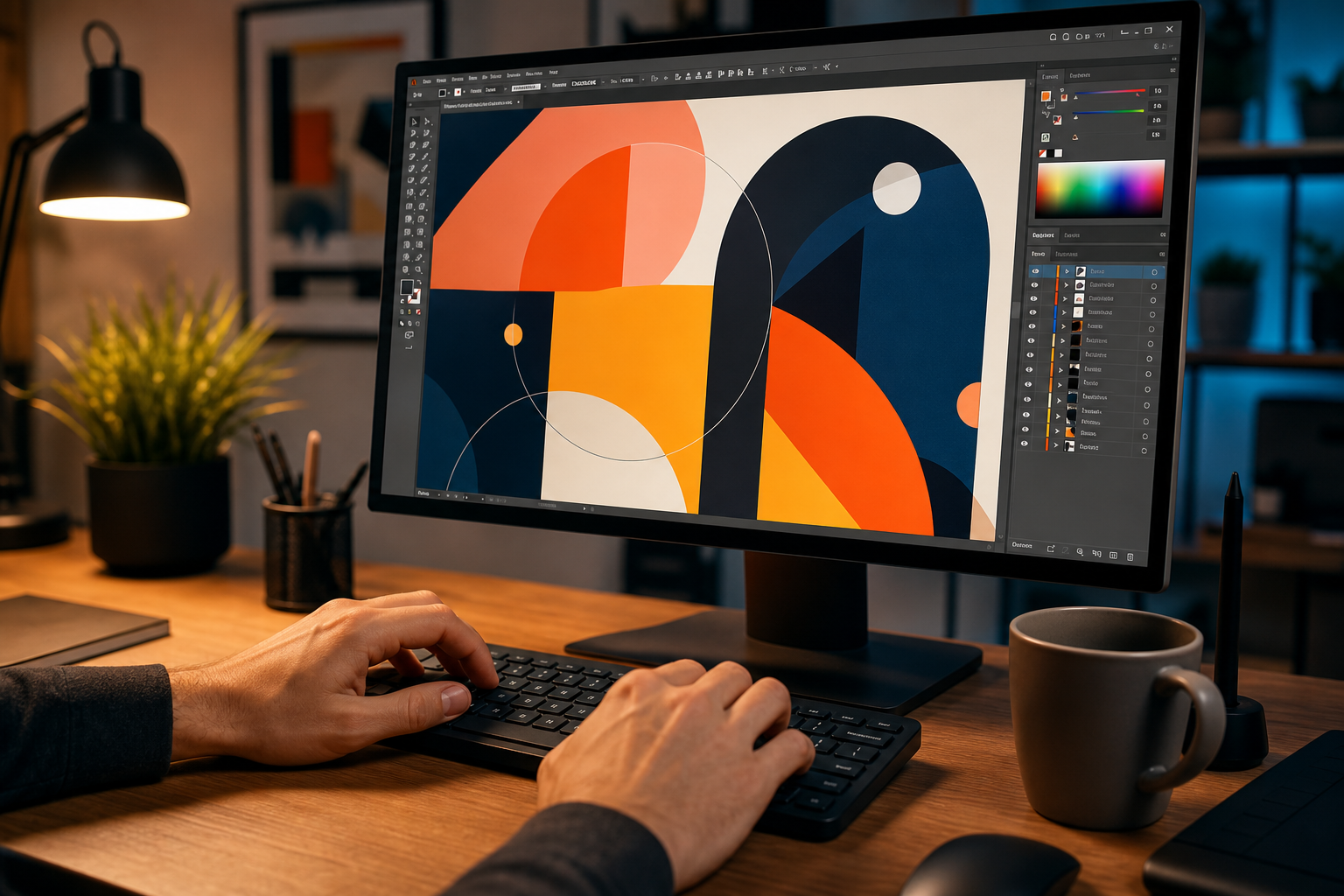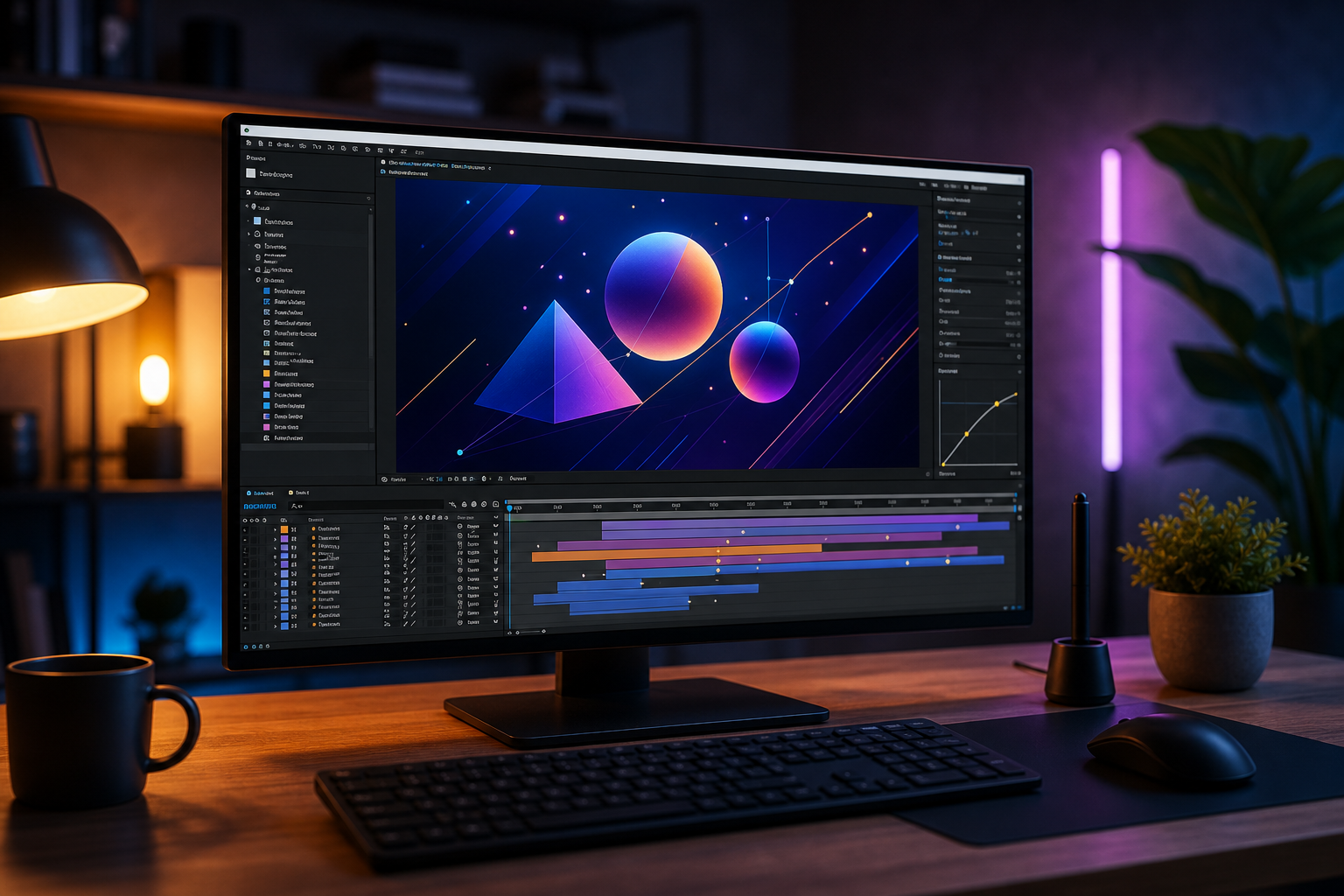
Unleash Your Creativity: Start Your First Motion Graphics Project in After Effects Today!
Ready to bring your designs to life? This guide provides a beginner-friendly path to creating your first motion graphics project using Adobe After Effects, demystifying the process for aspiring animators.
By Rollan Bañez · September 22, 2026 · 8 min read
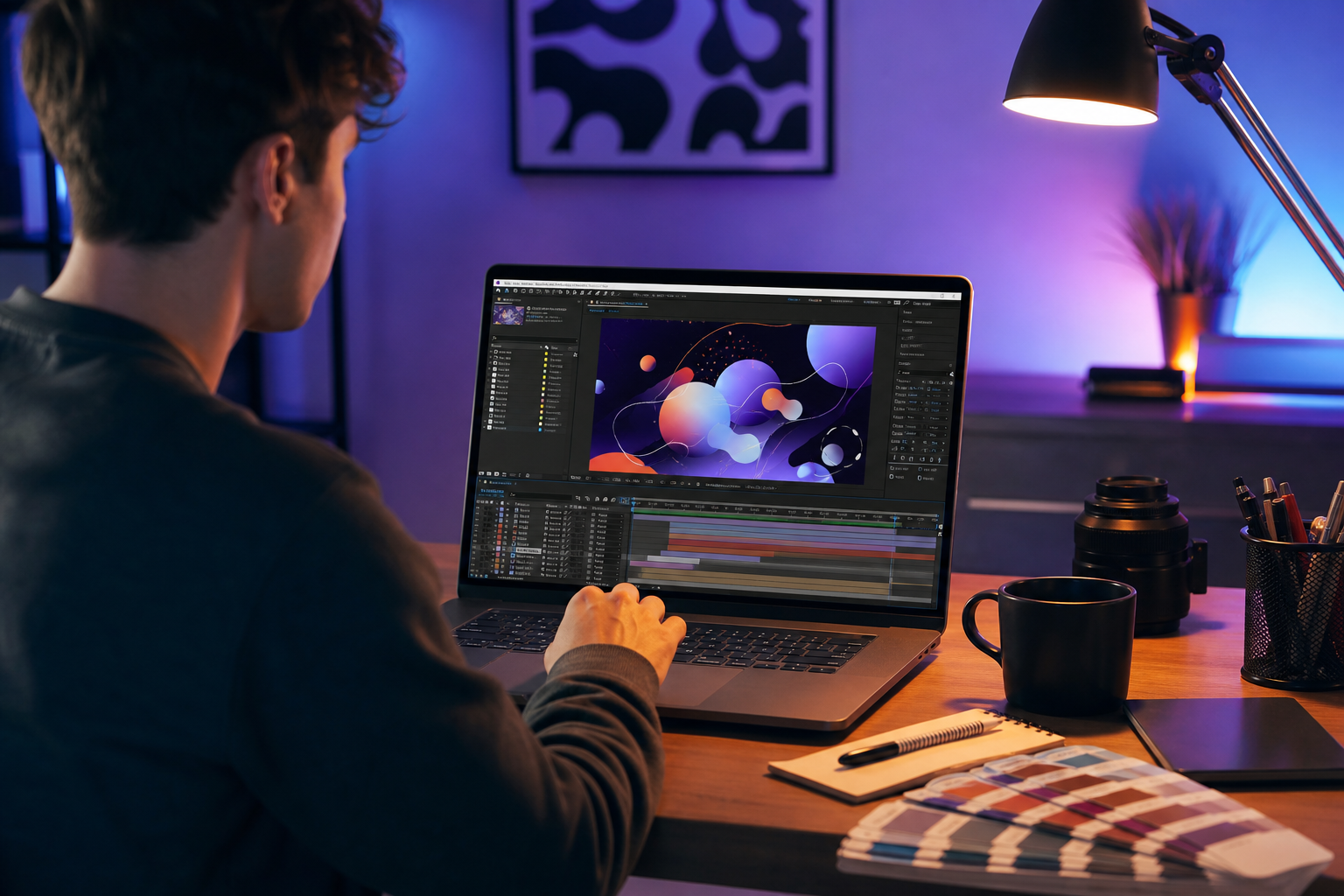
In today's visually-driven world, motion graphics are everywhere. From engaging social media videos to dynamic corporate presentations and compelling film titles, animated visuals capture attention and convey messages with impact. Learning to create these stunning animations is a highly sought-after skill, opening doors in countless creative industries.
Adobe After Effects stands as the industry standard for motion graphics, visual effects, and compositing. While its capabilities are vast, getting started doesn't have to be intimidating. This guide from Creative Nation Academy will walk you through the essential steps to complete your very first motion graphics project, empowering you to animate your ideas.
The Power of Motion Graphics in the Digital Age
Motion graphics transform static designs into vibrant, storytelling experiences. They blend principles of graphic design with animation, enhancing visual communication across various platforms. The demand for skilled motion designers continues to grow, reflecting a broader trend towards dynamic content.
According to LinkedIn's 2023 Jobs on the Rise report, roles requiring video and motion design skills remain highly in-demand. Businesses, content creators, and marketing agencies increasingly rely on animated elements to stand out in crowded digital spaces. Mastering After Effects basics can significantly boost your creative career prospects.
Why After Effects is Your Go-To Tool
After Effects offers unparalleled control and flexibility for animators and visual effects artists. It integrates seamlessly with other Adobe Creative Cloud applications like Photoshop and Illustrator, streamlining your workflow. Its extensive toolset supports everything from simple text animations to complex character rigging and visual effects.
Learning this powerful software provides a foundation for advanced skills. It enables you to pursue roles in broadcast design, advertising, film, and interactive media. Creative Nation Academy's Adobe Certified Professional training pathways often feature After Effects as a core component.
Setting Up Your First Project: The Essentials
Before diving into animation, understanding the After Effects interface and project setup is crucial. A well-organized project saves time and prevents frustration. Familiarize yourself with the main panels: Project, Composition, Timeline, and Effects & Presets.
Your first step is to create a new composition. This is your canvas, where all your visual elements will come together. Think of it as the stage for your animation.
Creating a New Composition
- Go to File > New > New Composition or use the shortcut Ctrl/Cmd + N.
- In the Composition Settings dialog, name your composition (e.g., "My First Animation").
- Choose a preset for your resolution and frame rate. For web-based content, 1920x1080 (HDTV 1080) at 29.97 or 30 frames per second (fps) is a common choice.
- Set your duration. Start with a short duration, perhaps 5-10 seconds, for your initial project.
- Click OK to create your composition.
Importing Assets and Understanding Layers
Motion graphics often involve importing external assets like images, logos, or pre-designed elements. After Effects supports a wide range of file formats, including PSD, AI, JPG, PNG, and more. Keep your assets organized in dedicated folders on your computer.
- To import, go to File > Import > File (Ctrl/Cmd + I) or double-click in the Project panel.
- Import your chosen assets (e.g., a logo, a simple shape, or text).
- Drag and drop these assets from the Project panel onto your Timeline panel to create new layers. Each element you animate will reside on its own layer.
- Layers are fundamental to After Effects. They stack on top of each other, determining their visual order.
Bringing Elements to Life: Keyframes and Properties
Animation in After Effects primarily relies on keyframes. Keyframes mark a point in time where a layer's property (like position, scale, rotation, or opacity) changes. By setting multiple keyframes, you define how an element transforms over time.
Let's create a simple animation: making a logo fly onto the screen and then fade out.
Animating Position and Scale
- Select your logo layer in the Timeline panel.
- Press 'P' for Position or 'S' for Scale to reveal these properties.
- Click the stopwatch icon next to 'Position' or 'Scale' at the beginning of your timeline. This sets your first keyframe.
- Move your playhead forward in time (e.g., to 1 second).
- Adjust the position or scale values. After Effects automatically creates a new keyframe, animating the change between the two points.
- Experiment with different values and timing. Play back your animation by pressing the spacebar.
Adding Professional Polish with Easy Ease
Animations often look more natural with smooth starts and stops. This is achieved using 'Easy Ease'.
- Select your keyframes in the Timeline panel.
- Right-click on a keyframe, then go to Keyframe Assistant > Easy Ease.
- Alternatively, you can use Easy Ease In (F9) for a smooth stop or Easy Ease Out (Shift+F9) for a smooth start.
- Observe how this subtle change enhances the flow of your animation.
Adding Text and Basic Effects
Text is a core component of many motion graphics projects. After Effects offers robust text animation tools.
Creating and Animating Text
- Select the Type Tool (T) in the toolbar and click in the Composition panel to create a text layer.
- Type your desired text (e.g., "Creative Nation Academy").
- Use the Character and Paragraph panels to customize font, size, color, and alignment.
- To animate text, you can use the same position, scale, and opacity properties as other layers.
- Explore Text Animators under the text layer's properties for more advanced, built-in text animation options (e.g., Animate > Position, Scale).
Applying Simple Effects
After Effects boasts a vast library of effects. For your first project, consider subtle additions like glows or blurs.
- Select the layer you wish to apply an effect to.
- Go to the Effects & Presets panel. Search for an effect, such as "Fast Box Blur" or "Glow."
- Drag and drop the effect onto your layer in the Timeline or Composition panel.
- Adjust the effect's parameters in the Effect Controls panel. You can also animate these parameters using keyframes for dynamic effects.
Rendering Your First Masterpiece
Once your animation is complete, the final step is to render it. This process exports your composition into a video file that can be shared and played on various devices.
For high-quality web video, H.264 is a widely accepted format. After Effects uses the Adobe Media Encoder for efficient rendering.
- Go to Composition > Add to Adobe Media Encoder Queue.
- Adobe Media Encoder will launch. In the Queue panel, select your desired preset (e.g., H.264 > Match Source - High Bitrate).
- Choose your output file name and location.
- Click the green play button (Start Queue) to begin rendering.
- Congratulations! You've rendered your first motion graphics project.
Key Takeaways
- Motion graphics are vital for modern visual communication, with After Effects as the industry standard.
- Start by creating a new composition and importing your design assets.
- Animation is achieved by setting keyframes for layer properties like Position, Scale, and Opacity.
- Use Easy Ease to make your animations look smoother and more professional.
- Text layers can be animated with both basic transformations and advanced text animators.
- Render your final project using Adobe Media Encoder, typically to an H.264 format for web sharing.
Your Journey into Motion Design Begins
Completing your first motion graphics project in After Effects is a significant milestone. It marks the beginning of an exciting journey into the dynamic world of animation and visual effects. The skills you acquire here are highly transferable and increasingly valuable across industries.
As technology evolves, particularly with the integration of AI for creatives, the possibilities in motion design are expanding rapidly. Creative Nation Academy is dedicated to equipping you with the expertise to navigate and excel in this evolving landscape. Continue to practice, experiment, and build upon these After Effects basics to unlock your full creative potential.
Frequently asked questions
- What is the best way to learn After Effects as a beginner?
- Start with fundamental concepts like compositions, layers, keyframes, and basic transformations. Practice regularly with simple projects, utilize official Adobe tutorials, and consider structured courses or workshops from institutions like Creative Nation Academy to build a strong foundation.
- What are the essential computer specifications needed for After Effects?
- For optimal performance, a computer with a powerful multi-core processor (Intel i7/i9 or AMD Ryzen 7/9), at least 32GB of RAM (64GB recommended), a dedicated GPU with ample VRAM (NVIDIA GeForce RTX or AMD Radeon RX series), and fast SSD storage is highly recommended. These specifications will significantly improve rendering times and overall responsiveness.
- Can I use After Effects for free?
- Adobe After Effects is a subscription-based software included in Adobe Creative Cloud. Adobe offers a 7-day free trial, allowing you to explore its features before committing to a plan. There is no perpetually free version of the full software.
- What are common career paths for motion graphics designers?
- Motion graphics designers work in various fields including broadcast television, film production (titles, VFX), advertising, marketing, web design, app development, and corporate video. Roles can range from junior animator to senior motion designer, art director, or even freelancing.