Unleash Your Creativity: Your First Motion Graphics Project in After Effects
Ready to bring your designs to life? This guide introduces you to the fundamentals of After Effects, empowering you to craft your very first motion graphics project.
By Rollan Bañez · September 10, 2026 · 8 min read
In today's visually-driven world, motion graphics are no longer a niche skill but a fundamental requirement across various industries. From captivating social media content to professional broadcast animations, the demand for dynamic visuals is skyrocketing. Learning After Effects basics can unlock a powerful new dimension for your creative career.
Adobe After Effects stands as the industry standard for creating stunning motion graphics and visual effects. Mastering its foundational tools empowers designers, marketers, and video professionals to transform static images into engaging stories. This guide will walk you through setting up and completing your very first motion graphics project.
Why Motion Graphics Matter Now More Than Ever
The digital landscape is saturated, making compelling visual communication essential for cutting through the noise. Motion graphics offer an unparalleled way to convey information, evoke emotion, and capture audience attention quickly.
Platforms like TikTok, Instagram Reels, and YouTube Shorts prioritize dynamic video content, driving an urgent need for animation skills. Businesses are increasingly investing in animated explainers, title sequences, and interactive user interfaces to enhance their brand presence and user engagement.
According to recent industry reports, video content continues to dominate online consumption, with motion graphics playing a critical role in its effectiveness. Professionals proficient in After Effects are highly sought after, commanding competitive salaries in design, marketing, and film production roles.
Getting Started: Your After Effects Workspace
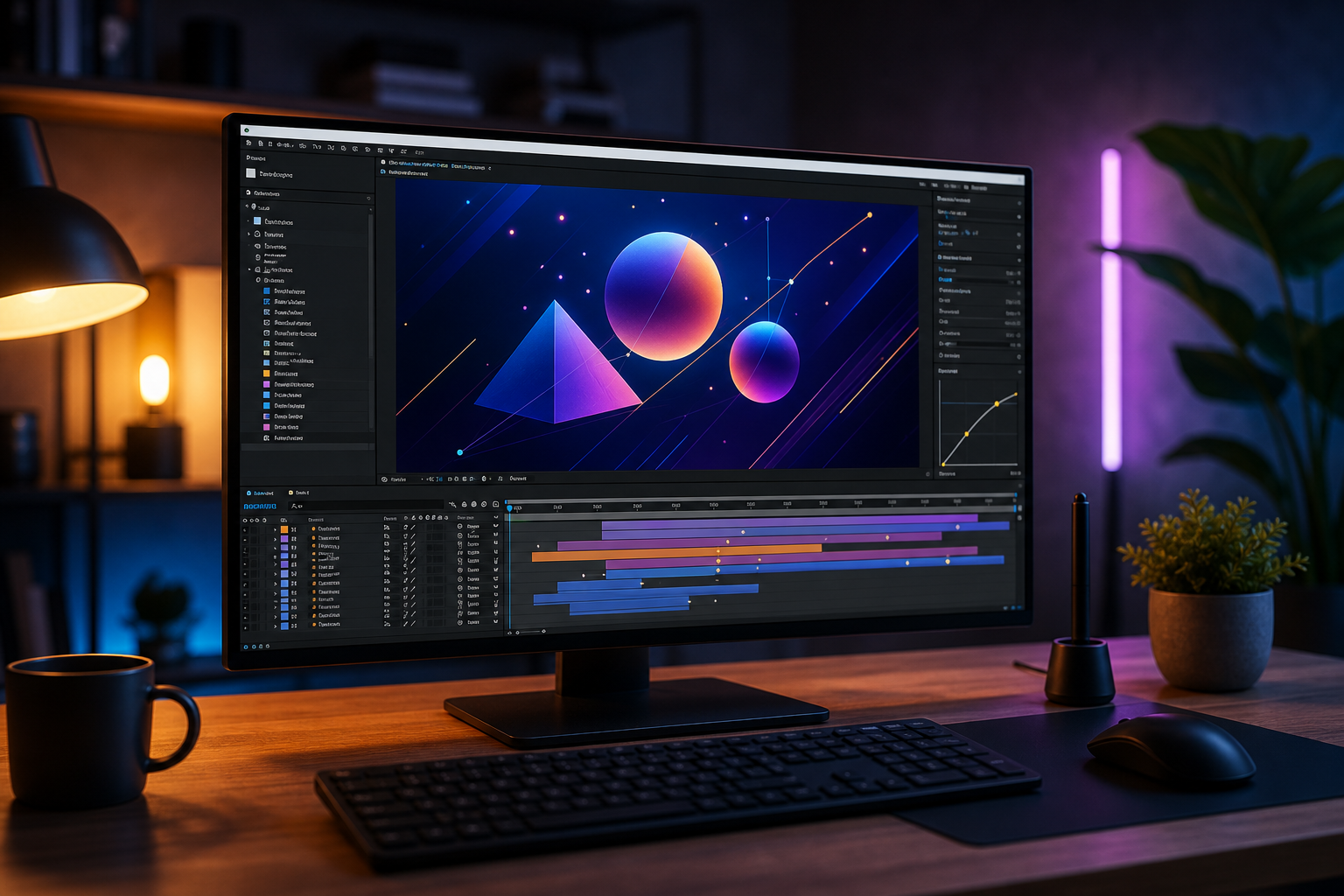
Before diving into animation, understanding the After Effects interface is crucial. Familiarizing yourself with its core panels will make your creative process much smoother.
Project Panel: Your Asset Hub
This panel is where you import and organize all your media assets, including images, video clips, audio files, and pre-composed sequences. Think of it as your digital filing cabinet.
Composition Panel: Your Visual Canvas
The Composition panel displays your active composition, showing you a real-time preview of your animation. This is where you arrange elements visually and see your motion graphics come to life.
Timeline Panel: The Heart of Animation
The Timeline panel is where the magic happens. Here, you manage layers, set keyframes, adjust properties like position, scale, and opacity, and control the timing of all your animations. Precision in the timeline is key to professional results.
Effects & Presets Panel: Boost Your Creativity
After Effects boasts a vast library of built-in effects and animation presets. This panel allows you to quickly apply filters, distortions, color corrections, and pre-built animations to your layers, saving time and sparking inspiration.
Your First Motion Graphics Project: Animating Text
Let's create a simple yet impactful animated title. This project will introduce you to layers, keyframes, and basic animation principles, forming a solid foundation for more complex motion graphics.
Step 1: Set Up Your Composition
- Open After Effects and go to
Composition > New Composition(orCtrl+N/Cmd+N). - Name it "My First Title".
- Set the
Presetto "HDTV 1080 29.97" for standard high-definition video. - Ensure
Durationis around 5-10 seconds. ClickOK.
Step 2: Create Your Text Layer
- Select the
Type Tool(T icon) from the toolbar. - Click anywhere in the Composition panel and type your desired text, e.g., "Creative Nation Academy."
- Use the
CharacterandParagraphpanels to adjust font, size, color, and alignment. - Select the
Selection Tool(V icon) and position your text centrally within the composition.
Step 3: Animate Position with Keyframes
Keyframes are markers that define a specific value for a layer property at a particular point in time. After Effects then interpolates (creates the in-between frames) to smoothly transition between these values.
- In the Timeline panel, expand your text layer by clicking the arrow next to its name.
- Expand
Transformproperties. - Move the Current Time Indicator (CTI) to 00:00 (the beginning of the timeline).
- Click the stopwatch icon next to
Position. This creates your first keyframe, locking the text's starting position. - Move the CTI to around 01:00 (1 second mark).
- Drag your text layer downwards in the Composition panel until it's off-screen. A new keyframe is automatically created.
- Now, move the CTI to 02:00 (2-second mark).
- Drag your text layer upwards into its final desired on-screen position. A third keyframe is added.
- Press
Spacebarto preview your animation. You should see the text slide up from off-screen.
Step 4: Refine with Ease
To make the animation smoother and more natural, we'll apply Easy Ease. This adjusts the speed of the animation as it approaches and leaves a keyframe.
- Select the last two keyframes for
Positionin the Timeline panel. - Right-click on one of the selected keyframes.
- Choose
Keyframe Assistant > Easy Ease In. This makes the text slow down as it reaches its final position. - Optionally, experiment with
Easy Ease OutorEasy Easefor different effects.
Step 5: Add a Scale Animation
Let's make the text slightly expand upon arrival for an added flourish.
- Move the CTI to the 02:00 mark (where your text lands).
- Click the stopwatch next to
Scalein the Transform properties. This sets its initial size. - Move the CTI slightly forward, to about 02:15 (2 seconds, 15 frames).
- Change the
Scalevalue to 105%. A new keyframe is created. - Move the CTI to 02:30 (2 seconds, 30 frames).
- Change the
Scalevalue back to 100%. - Preview your animation. The text should slide up and then subtly pop.
Expert Tips for Beginners
- Organize Your Project: Use folders in the Project panel for assets and compositions. Label layers clearly in the Timeline.
- Keyboard Shortcuts: Learn essential shortcuts (e.g.,
Pfor Position,Sfor Scale,Rfor Rotation,Tfor Opacity) to speed up your workflow. - Practice Regularly: Consistency is key to mastery. Try recreating animations you see online or experiment with different effects.
- Utilize Presets: Don't reinvent the wheel. After Effects has excellent built-in animation presets under
Animation > Browse Presets. - Adobe Certified Professional (ACP): Consider pursuing an Adobe Certified Professional certification to validate your skills and boost your career prospects.
Key Takeaways
- Motion graphics are crucial for modern digital communication and career growth.
- After Effects provides the industry-standard tools for creating professional animations.
- Understanding the Project, Composition, and Timeline panels is fundamental.
- Keyframes are the building blocks of animation, defining property changes over time.
- Simple text animations are an excellent starting point for learning core After Effects principles.
- Consistent practice and skill validation (like ACP certification) are vital for success.
Beyond the Basics: Your Creative Future
This introductory project is just the beginning of your journey into the vast world of After Effects. From here, you can explore complex character animation, dynamic visual effects, 3D integration, and much more. The skills you develop in motion graphics are highly transferable, opening doors to careers in film, television, advertising, game design, and digital marketing.
The future of creative content is undeniably dynamic, and your ability to produce captivating motion graphics will be a significant asset. Continue to learn, experiment, and refine your techniques. Creative Nation Academy offers comprehensive training and resources to help you advance your creative skills and become a leader in this exciting field. Explore our upcoming workshops and courses to deepen your expertise.
Frequently asked questions
- What are motion graphics?
- Motion graphics are animated graphic designs that create the illusion of motion or rotation. They are often used in video productions to convey information, add visual flair, or enhance storytelling through animated text, shapes, and images.
- Why should I learn After Effects?
- After Effects is the industry-standard software for motion graphics and visual effects. Learning it opens up numerous career opportunities in design, video production, advertising, and film, allowing you to create professional-grade animations and visual content.
- How long does it take to learn After Effects basics?
- You can grasp the fundamental concepts and create simple animations in After Effects within a few hours or days of dedicated practice. Mastering the software and creating complex projects, however, is an ongoing process that improves with consistent effort and learning.
- Do I need design experience to use After Effects?
- While design experience can certainly be beneficial, it's not strictly required. After Effects can be learned by anyone with an interest in animation and visual storytelling. Many resources, including those at Creative Nation Academy, cater to beginners and guide them through core design principles alongside technical skills.