Master After Effects Text: Animate Your Message, Captivate Your Audience
Transform static text into captivating motion graphics in Adobe After Effects. This guide explores essential techniques for adding, editing, and animating text, from basic formatting to advanced keyframing.
By Rollan Bañez · August 7, 2026 · 10 min read
In today's visually saturated world, compelling motion graphics are essential for capturing attention. Static text simply doesn't cut it anymore. Learning to animate text in After Effects is a foundational skill that can dramatically elevate your video projects, explainer videos, social media content, and branding.
Adobe After Effects, a cornerstone of the Adobe Creative Cloud suite, empowers designers to transform ordinary words into dynamic visual stories. This comprehensive guide will walk you through the core concepts and practical techniques for mastering text animation, from initial setup to sophisticated effects.
The Power of Animated Text in Modern Media
Animated text isn't just a stylistic choice; it's a powerful communication tool. It guides viewer attention, emphasizes key information, and adds a professional polish to any production. From YouTube intros to corporate presentations, dynamic typography is everywhere.
According to a recent HubSpot study, video content generates more engagement than any other format. Well-designed and animated text within these videos significantly boosts retention and impact. This makes expertise in After Effects text animation highly sought after in the creative industry.
For professionals seeking to stand out, proficiency in these skills can open doors to new career opportunities in broadcast design, advertising, and digital content creation. It's a critical component of a robust Adobe Certified Professional skillset.
Point Text vs. Paragraph Text: Choosing Your Foundation
Before you even think about animation, understanding the two fundamental types of text layers in After Effects is crucial. Each serves a distinct purpose and behaves differently, especially when scaled or wrapped.
Point Text: Precision and Control
Point text is ideal for single words, short phrases, or headlines. When you select the Type tool and simply click in your Composition panel, you create point text. It's defined by an insertion point, and each line is independent.
- Expands or shrinks from its anchor point when scaled.
- Does not automatically wrap text; new lines must be manually entered with 'Return' or 'Enter'.
- Best for titles, logos, and elements requiring precise, individual character animation.
Paragraph Text: Flow and Layout
Paragraph text is perfect for blocks of copy, body text, or any instance where you need text to flow within a defined area. You create paragraph text by selecting the Type tool and dragging a text box in your Composition panel.
- Wraps automatically within the boundaries of its bounding box.
- Scaling the text box will reflow the text, not scale the font size (unless the text box itself is scaled).
- Excellent for subtitles, credits, or informational overlays where content length may vary.
Choosing the correct text type from the outset will save you considerable time and frustration later in your animation process. You can convert between point and paragraph text by right-clicking the text layer and selecting 'Convert to Paragraph Text' or 'Convert to Point Text'.
Mastering the Properties Panel: Your Text Formatting Hub
Once you've created your text layer, the Properties panel (Window > Properties) becomes your command center for formatting. This panel centralizes all essential character and paragraph settings, making it an indispensable tool for designers.
Character Formatting
The Character section allows you to fine-tune the look of your individual letters. Consistency in typography is key for professional results, and this panel provides the granular control needed.
- Font Family & Style: Select your typeface and its weight (e.g., Bold, Italic).
- Font Size: Adjust the size of your text.
- Leading (Line Spacing): Control the vertical space between lines of text.
- Kerning & Tracking: Adjust space between specific character pairs (kerning) or a range of characters (tracking).
- Fill & Stroke: Define the color and outline of your text.
- Faux Styles: Apply artificial bold or italic if a font family lacks these styles (use sparingly).
Paragraph Formatting
The Paragraph section dictates how your text blocks are aligned and indented. These settings are particularly important for paragraph text to ensure readability and visual balance.
- Alignment: Left, Center, Right, and Justified options.
- Indentation: Adjust indents for the first line, left, and right margins.
- Space Before/After: Add extra vertical space around paragraphs.
Remember that you can apply animations to many of these text properties directly, not just position or scale. Changing a color or font size over time can be a subtle yet effective animation technique.
Unleashing Creativity with Text Animation Presets
After Effects comes packed with a robust library of animation presets that can instantly add professional motion to your text. These are fantastic starting points for beginners and time-savers for experienced animators.
To access them, open the Effects & Presets panel (Window > Effects & Presets). Navigate to 'Animation Presets' > 'Text'. You'll find categories like 'Animate In', 'Animate Out', 'Blurs', 'Fills', 'Tracking', and more.
Applying a preset is as simple as dragging it onto your text layer in the Timeline panel. Once applied, the preset creates an Animator group in your text layer's properties, allowing you to customize its behavior. Experiment with different presets to understand their mechanics and how they can be adapted.
Precision Motion with Keyframes and Text Animators
While presets offer a quick start, custom keyframe animation provides limitless creative control. Understanding keyframes is fundamental to all animation in After Effects, including text.
The Power of Text Animators
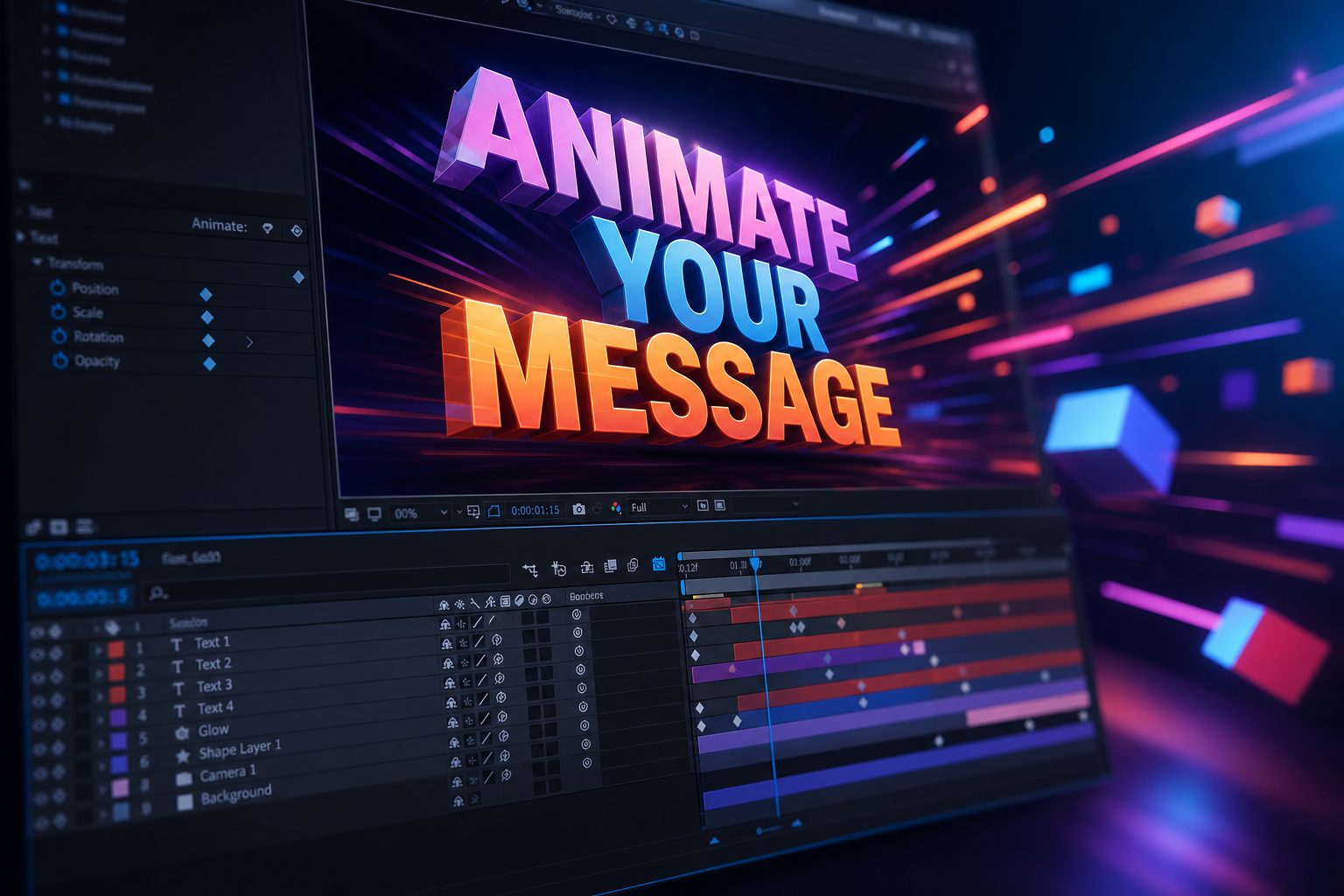
Beyond basic layer transforms (position, scale, rotation), After Effects offers dedicated 'Text Animators'. These allow you to animate individual characters, words, or lines within a text layer based on properties like opacity, position, scale, rotation, and color.
- Add an Animator: With your text layer selected, expand its properties in the Timeline panel. Click the 'Animate' dropdown and choose a property (e.g., 'Position', 'Opacity').
- Range Selector: An 'Animator' group appears, containing a 'Range Selector'. This is where you define which part of your text will be affected by the animation. Adjust 'Start', 'End', and 'Offset' to control the animation's progression across characters.
- Add Properties: Within the Animator group, you can add multiple properties to animate simultaneously (e.g., animate both position and opacity).
- Keyframe Properties: Set keyframes for the 'Start', 'End', or 'Offset' of your Range Selector, or directly on the animated properties themselves, to create motion over time.
Explore the 'Advanced' options within the Range Selector for even more sophisticated control over the animation's ease, shape, and random order. This allows for truly unique and organic text animations that distinguish your work.
For those looking to deepen their understanding of advanced animation principles, Creative Nation Academy offers specialized courses that delve into complex keyframing techniques and the use of expressions. Check out our blog for more insights into motion design trends.
Integrating Text Animation into Professional Workflows
The ability to animate text effectively is a critical component for many roles in the creative industry. Video editors use it for lower thirds and titles, motion graphic designers craft entire narratives with it, and marketing professionals leverage it for engaging social media content.
Staying current with After Effects updates and new animation techniques is vital. The software regularly introduces features that streamline workflows and expand creative possibilities. Continuous learning through resources like Creative Nation Academy ensures your skills remain sharp and relevant.
Many professionals pursue Adobe Certified Professional certifications to validate their expertise. These certifications demonstrate a high level of proficiency and can significantly boost career prospects in a competitive landscape.
Key Takeaways
- Choose between Point Text (headlines, short phrases) and Paragraph Text (blocks of copy) based on your content needs.
- The Properties panel is your central hub for precise character and paragraph formatting.
- Utilize After Effects' built-in Text Animation Presets for quick, professional results and as learning tools.
- Master custom animation with Keyframes and dedicated Text Animators for unparalleled creative control over individual characters, words, or lines.
- Understanding Range Selectors is crucial for defining how your animations propagate through text.
- Continuous skill development in After Effects is essential for career growth in motion graphics and video production.
The Future is Dynamic: Elevate Your Visual Storytelling
As digital platforms continue to evolve, the demand for dynamic and engaging content will only grow. Text animation in After Effects is not just a technical skill; it's an art form that allows you to breathe life into your message, making it more impactful and memorable.
By mastering these techniques, you're not just animating text; you're enhancing storytelling, improving user engagement, and developing a highly valuable skill set for the modern creative landscape. Continue to experiment, explore new effects, and push the boundaries of what's possible with animated typography.
Frequently asked questions
- What's the main difference between point and paragraph text in After Effects?
- Point text is for short, single lines like titles, where each line is independent. Paragraph text is for blocks of copy that automatically wrap within a defined bounding box, making it suitable for subtitles or body text.
- How can I quickly animate text in After Effects without setting many keyframes?
- You can use After Effects' built-in Text Animation Presets found in the Effects & Presets panel. Simply drag a preset onto your text layer to apply a pre-designed animation, which you can then customize.
- What are Text Animators and how do they differ from regular keyframes?
- Text Animators are specific controls within After Effects that allow you to animate properties like position, opacity, or scale on individual characters, words, or lines within a text layer. They work in conjunction with 'Range Selectors' to define the scope and progression of the animation, offering more granular control than animating the entire text layer with standard keyframes.