
Unlock Dynamic Text: After Effects Motion Blur & Easy Ease Secrets
Learn how to transform static text into dynamic, engaging visuals using After Effects' powerful motion blur and easy ease features. Elevate your digital teaching content and creative projects.
By Rollan Bañez · July 5, 2026 · 9 min read
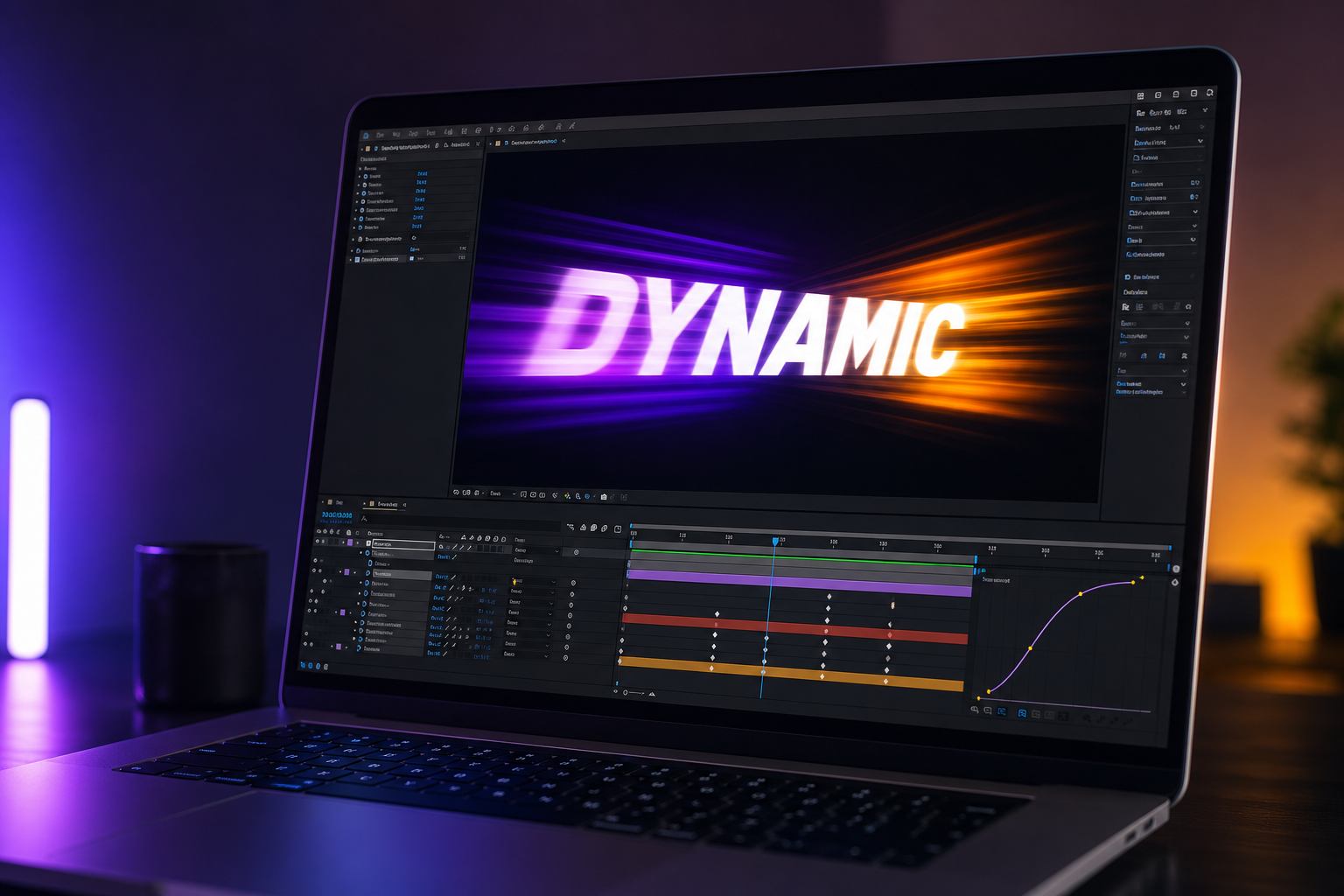
In today's visually-driven world, captivating digital content is paramount. For educators and creative professionals alike, the ability to breathe life into text isn't just an aesthetic choice; it's a pedagogical imperative. Static slides and monotonous titles no longer cut through the noise, especially with younger, digitally native audiences.
This is where Adobe After Effects steps in, offering a powerful toolkit to transform plain text into dynamic, engaging elements. By mastering techniques like motion blur and easy ease, you can create animations that convey information more effectively and keep your audience captivated.
The Power of Dynamic Text in Education
For educators, engaging visuals are key to student retention and understanding. Complex concepts can be broken down and presented in an digestible, animated format. This is particularly true in distance learning environments where maintaining attention can be challenging.
Integrating animated text into lessons, presentations, and explanatory videos can significantly enhance the learning experience. It turns passive viewing into an active, stimulating interaction, fostering better comprehension and recall.
Beyond the classroom, these skills are invaluable for anyone creating video content, from marketing materials to explainer videos. Adobe Certified Professional skills in After Effects are increasingly sought after across various industries, highlighting the growing demand for proficient motion graphics artists.
Understanding After Effects Basics for Text Animation
Before diving into advanced techniques, a solid grasp of After Effects fundamentals is crucial. The software operates on layers, much like a stack of transparent sheets, allowing for complex compositions.
Keyframes are the backbone of any animation in After Effects. They mark specific points in time where a property (like position, scale, or opacity) changes its value. After Effects then interpolates, or calculates, the values between these keyframes, creating smooth movement.
For text, you typically start with a text layer. You can then animate various properties of this layer or, for more granular control, animate individual characters, words, or lines using After Effects' powerful text animators.
Setting Up Your Text Layer
- Create a new composition (Ctrl/Cmd + N).
- Select the Type Tool (T) and click anywhere in the Composition panel to create a new text layer.
- Type your desired text and adjust its font, size, and color in the Character panel.
- Position your text centrally or as needed within your composition.
Understanding these initial steps provides the foundation for adding more sophisticated effects. Precision in setting up your text layer directly impacts the quality of your final animation.
Mastering Motion Blur for Realistic Movement
Motion blur is a visual phenomenon that occurs when an object moves relative to the camera during the exposure time. In animation, it's crucial for creating the illusion of speed and realism, making movements appear less jerky and more natural.
Without motion blur, fast-moving objects in animation can look artificial or 'stroboscopic,' as if they are jumping abruptly from one position to the next. After Effects offers built-in tools to simulate this effect accurately.
Applying Motion Blur to Text
After Effects provides two primary ways to apply motion blur: per-layer and composition-wide. For text animations, you'll typically manage it at the layer level.
- Ensure the 'Motion Blur' switch is enabled for your text layer in the Timeline panel. It looks like three overlapping circles.
- Also, make sure the 'Enable Motion Blur' switch (the same icon) is active at the top of the Timeline panel for the entire composition. If this global switch is off, no layer will display motion blur, even if enabled individually.
- Animate your text using position, scale, or rotation keyframes. The faster the movement, the more pronounced the motion blur will be.
Adjusting the shutter angle and phase in the Composition Settings (Advanced tab) can further refine the look of your motion blur, allowing for subtle artistic control over the blur intensity and characteristics. Expert use of these settings can dramatically elevate your visual quality.
Elevating Animations with Easy Ease Keyframes
While motion blur adds realism to movement, easy ease adds a natural, organic feel to the timing of that movement. Think of how a car accelerates and decelerates smoothly, rather than starting and stopping abruptly.
Easy ease modifies the acceleration and deceleration curve between keyframes. Instead of a linear change, where speed is constant, easy ease creates a gentle ramp-up and ramp-down, making movements appear much more fluid and less robotic.
Implementing Easy Ease
Applying easy ease is straightforward and can dramatically improve the professional look of your animations. This technique is fundamental for creating smooth transitions and impactful reveals.
- Select the keyframes on your animated text layer in the Timeline panel.
- Right-click on any selected keyframe.
- Go to 'Keyframe Assistant' and choose 'Easy Ease' (F9), 'Easy Ease In,' or 'Easy Ease Out.'
'Easy Ease' applies both ease-in and ease-out. 'Easy Ease In' creates a fast start that slows down towards the keyframe, perfect for objects arriving at a destination. 'Easy Ease Out' creates a slow start that speeds up towards the keyframe, ideal for initiating movement.
For more advanced control, utilize the Graph Editor. This powerful tool allows you to visually manipulate the speed and value curves of your animations, offering granular adjustments for perfectly timed and nuanced motion. Mastering the Graph Editor is a hallmark of professional After Effects users, leading to truly bespoke animations.
Practical Applications in Digital Teaching
Imagine explaining a complex process with animated text that elegantly slides into view, or highlighting key terms in a presentation with a subtle, dynamic zoom. These are just some practical applications of these techniques for educators.
Examples for the Classroom
- Animated Bullet Points: Instead of appearing instantly, bullet points can fly in with a gentle bounce using easy ease, attracting attention to each new piece of information.
- Highlighting Keywords: Important vocabulary can subtly scale up or change color with motion blur, making them stand out in a video lecture.
- Concept Introductions: Titles for new chapters or modules can slowly emerge, then quickly settle, creating a professional and engaging opening.
- Interactive Quizzes: Text options for multiple-choice questions can animate in, drawing student focus to the choices. Discover more creative tools in our blog.
By implementing these techniques, educators can transform static learning materials into dynamic, memorable experiences. This not only bolsters student engagement but also equips learners with a more visually rich understanding of the content.
Future Outlook: AI & After Effects
The landscape of creative tools is continuously evolving, with artificial intelligence playing an increasingly significant role. While After Effects text animation fundamentally relies on artistic skill, AI is beginning to augment workflows.
Future iterations might see AI-powered tools suggesting optimal easy ease curves, automatically generating motion blur based on perceived speed, or even animating text based on voice commands or semantic analysis of content. This could significantly democratize complex animation, making it more accessible to a broader audience, including more educators.
However, the foundational understanding of principles like motion blur and easy ease will remain critical. AI will be a co-pilot, not a replacement, for the human creative touch. Creative Nation Academy is actively exploring the intersection of AI and design to provide cutting-edge training, including upcoming workshops on integrating AI into creative workflows.
Key Takeaways
- Dynamic text animations significantly enhance engagement and comprehension in digital content.
- After Effects' motion blur adds realism and speed to moving text, preventing a 'stroboscopic' look.
- Easy ease creates natural, fluid acceleration and deceleration, making animations less robotic.
- Combining motion blur and easy ease elevates simple text into professional-grade motion graphics.
- These techniques are invaluable for educators to create more compelling teaching materials.
- Mastering After Effects keyframe animation and the Graph Editor offers ultimate control and precision.
The journey to mastering After Effects text animation is an investment in your creative and educational capabilities. By applying motion blur and easy ease, you're not just moving pixels; you're crafting experiences that resonate and inform.
As digital content continues to dominate how we learn and communicate, the ability to create visually stunning and informative text animations will only grow in importance. Embrace these powerful techniques to captivate your audience, whether in the classroom or in your next creative project. For professional development and certification, explore our educator programs.
Frequently asked questions
- What is motion blur in After Effects and why is it important for text animation?
- Motion blur in After Effects simulates the natural blurring effect seen in fast-moving objects, making animations appear more realistic and smooth. For text animation, it prevents a 'stroboscopic' or jumpy look, especially during rapid movements, enhancing the perceived speed and fluidity of the text.
- How does Easy Ease improve text animations in After Effects?
- Easy Ease, a keyframe assistant, smooths the acceleration and deceleration of animated properties. Instead of abrupt starts and stops, it creates a gradual ramp-up and ramp-down in speed, resulting in more natural, organic, and professional-looking text movements that are more pleasing to the eye.
- Can I apply motion blur and easy ease to individual characters in After Effects?
- Yes, you can! By using After Effects' Text Animators, you can achieve highly granular control. You can animate properties like position, scale, or opacity for individual characters, words, or lines, and then apply motion blur and easy ease to these specific animations for highly customizable and dynamic effects.
- Are these text animation techniques difficult for beginners in After Effects?
- While After Effects has a learning curve, applying motion blur and easy ease to text animations is considered a fundamental skill that significantly impacts visual quality. With a basic understanding of keyframes, beginners can quickly grasp and implement these techniques, vastly improving their animation results.