
From Sketch to Screen: Animate Your Ideas with Firefly's AI Video Power
Discover how Adobe Firefly's AI tools can transform your rough sketches into dynamic, 5-second animated videos. This guide covers the complete workflow from idea to animation.
By Rollan Bañez · July 31, 2026 · 9 min read
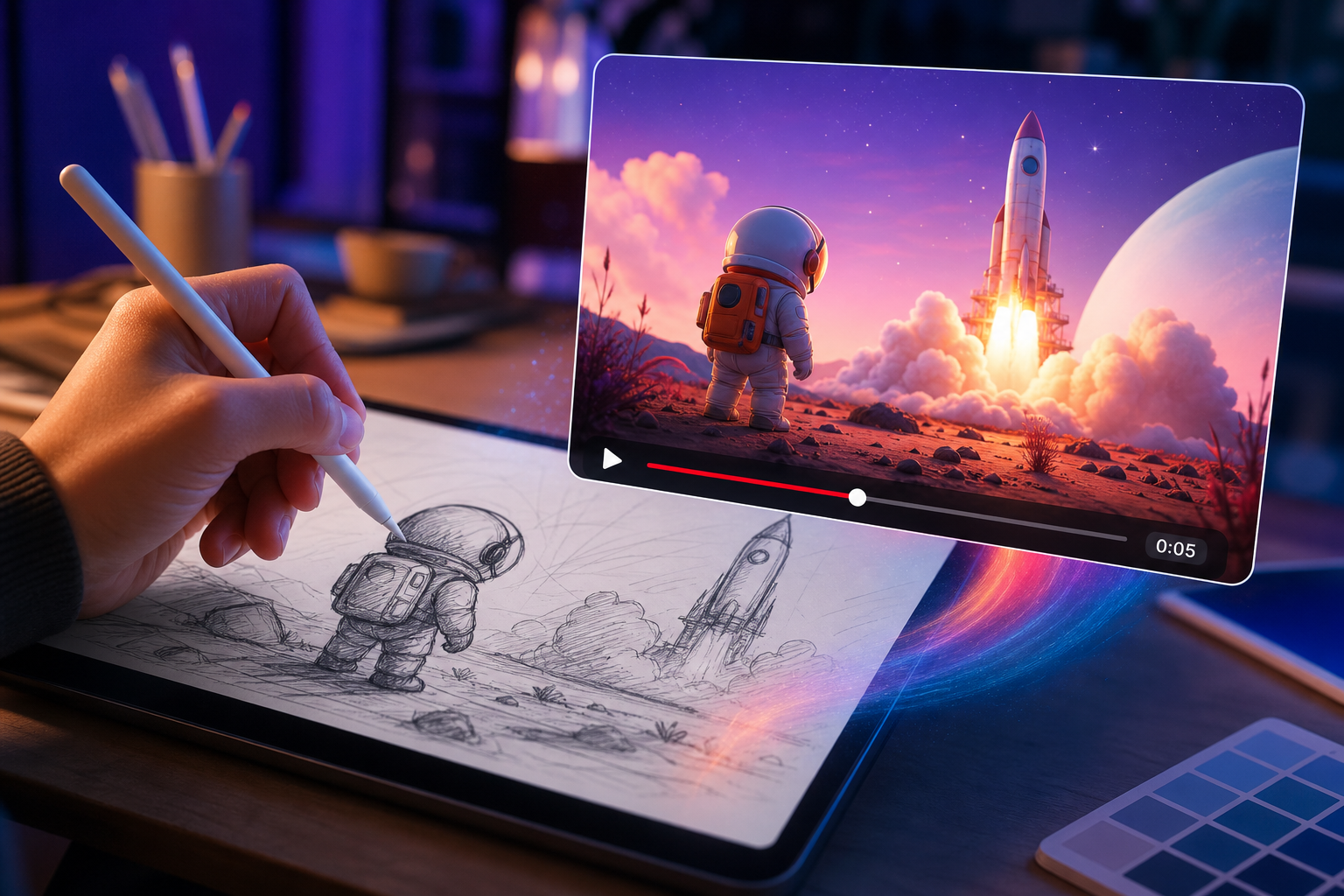
Imagine a world where your wildest ideas, born from a simple doodle, leap into motion in mere minutes. This isn't science fiction; it's the evolving reality powered by Adobe Firefly's groundbreaking AI capabilities. Creative professionals and enthusiasts are now equipped to transform static concepts into dynamic visual stories with unprecedented speed.
The integration of advanced AI models within the Adobe ecosystem is rapidly redefining creative workflows. What once required hours of complex animation or video editing can now be prototyped and iterated at the speed of thought, democratizing access to professional-grade animation for a broader audience.
The AI Revolution in Creative Workflows
Adobe Firefly stands at the forefront of this creative revolution, offering a suite of generative AI tools that empower users to accelerate their design and production processes. Two pivotal features, Text to Image and Image to Video, are particularly transformative when combined, enabling a seamless transition from concept to animation.
This innovative pairing allows creators to move beyond static imagery. It facilitates rapid experimentation with visual styles, character designs, and narrative concepts, making it an invaluable asset for ideation and prototyping in film, advertising, game development, and more. Understanding this workflow is becoming essential for staying competitive.
The Power of Generative AI for Visuals
Generative AI models, such as those powering Firefly, learn from vast datasets to understand complex patterns and relationships within visual information. This allows them to create new, unique content based on text prompts or existing images.
For designers and artists, this translates into unprecedented efficiency. Instead of laboriously crafting every detail, AI can generate foundational elements or entire scenes, freeing up creatives to focus on refining their vision and adding their unique artistic touch. It's a partnership between human creativity and artificial intelligence.
Your Step-by-Step Guide: Sketch to Video with Adobe Firefly
This workflow transforms a simple sketch into a 5-second animated video. It leverages Adobe Firefly's AI to bridge the gap between initial concept and final motion, providing a powerful tool for rapid prototyping and creative exploration.
Step 1: Ideation and Sketching
Start with a clear concept. What story do you want to tell? What action will unfold? A simple, rough sketch is your starting point. Focus on the core elements and composition rather than intricate details.
- Use traditional pen and paper, or a digital drawing tool like Adobe Fresco or Photoshop.
- Keep your sketch relatively clean, focusing on strong outlines.
- Consider the eventual 5-second animation; what key moments need to be present?
The goal here is to establish the fundamental visual idea that Firefly will interpret. Think of it as providing the AI with a strong foundation.
Step 2: Refining with Adobe Firefly's Text to Image
Your sketch now becomes the visual seed for AI generation. Upload your sketch into Firefly's Text to Image module. This is where you'll guide the AI to interpret and enhance your drawing.
- Image Upload: Import your sketch into the Text to Image interface.
- Descriptive Prompts: Craft detailed text prompts that describe your desired final image. Be specific about style, color, lighting, and any elements not fully clear in your sketch.
- Style References: Utilize Firefly's style options (e.g., 'photorealistic,' 'concept art,' 'cyberpunk,' 'watercolor') to guide the aesthetic.
- Iterate and Refine: Generate multiple variations. Adjust your prompts, reference images, and stylistic choices until you achieve an image that closely matches your vision.
This phase is crucial for ensuring the AI-generated image aligns with your initial artistic intent. Experimentation is key to discovering the most effective prompt combinations.
Step 3: Animating with Adobe Firefly's Image to Video (Generative Video)
Once you have your perfected AI-generated image, it's time to bring it to life using Firefly's Image to Video feature. This module, often referred to as Generative Video, is designed to imbue static images with dynamic motion.
Camera Motion Controls
The camera motion controls are vital for directing the animation. These settings dictate how the virtual camera moves around or through your scene.
- Pan: Moves the camera horizontally (left/right). Useful for following subjects or revealing a wider scene.
- Tilt: Moves the camera vertically (up/down). Great for dramatic reveals or showing height.
- Zoom: Moves the camera closer to or further from the subject. Adds emphasis or context.
- Dolly: Physically moves the camera forward or backward through the scene, maintaining perspective.
- Orbital: Rotates the camera around a central point, creating a dynamic, immersive feel.
Experiment with subtle camera movements first. A slight pan or zoom can add significant depth and engagement without overwhelming the viewer. Consider the emotional impact of each movement.
Prompt Tips for Animation
Beyond camera motion, text prompts can influence the *internal* animation of elements within your image. While Image to Video primarily animates the camera, subtle generative motions are also possible.
- Focus on Keywords: Use keywords that suggest movement, such as 'rippling water,' 'gentle breeze,' 'flashing lights,' or 'glowing embers.'
- Describe Dynamics: Instead of 'a forest,' try 'a forest with leaves gently swaying.'
- Be Specific: The more precise your prompts, the better the AI can interpret and generate relevant motion.
Remember that generative video is an evolving technology. While dramatic character animation isn't its primary function currently, it excels at creating atmospheric and environmental motion.
Adjusting Animation Intensity and Style
Firefly often provides sliders or options to control the intensity and style of the generated motion. Increase intensity for more dramatic movement, or decrease it for a subtle, ethereal feel. Different styles might emphasize smooth transitions or more abrupt cuts, depending on the tool's capabilities.
Step 4: Leveraging B-Roll Use Cases for Creators
The 5-second video clips generated by Firefly are perfect for creating B-roll footage. B-roll adds visual interest, helps cover cuts, and enhances storytelling without distracting from the main narrative.
- Establishing Shots: Create atmospheric clips for scene intros or transitions.
- Product Showcases: Animate abstract backgrounds or environmental details for product videos.
- Social Media Content: Generate captivating short loops for Instagram Stories, Reels, or TikTok.
- Concept Visualization: Quickly animate different stylistic approaches for film or game concepts.
- Mood Setters: Produce clips that evoke specific emotions or atmospheres for presentations or digital art installations.
These short, high-quality animations can be seamlessly integrated into larger video projects in tools like Adobe Premiere Pro or After Effects, significantly speeding up production time.
The Evolving Landscape of AI in Education and Creative Careers
The rise of tools like Adobe Firefly presents a significant shift in the skills required for creative professionals. Proficiency in generative AI is quickly becoming a valuable asset, not just a niche interest.
Creative Nation Academy recognizes this shift by offering specialized training in AI for creatives. Understanding these technologies enhances employability and opens new career paths in roles focused on AI art direction, prompt engineering, and rapid content generation. Our Adobe Certified Professional courses now increasingly integrate AI workflows.
Moreover, educators are exploring how to integrate these powerful tools into curricula. Upskilling educators is crucial for preparing the next generation of creatives. Attending workshops and webinars on AI tools can provide invaluable insights into best practices and ethical considerations.
Key Takeaways
- Adobe Firefly's Text to Image and Image to Video tools offer a revolutionary workflow for animating sketches.
- Detailed prompts and effective camera motion controls are crucial for successful AI video generation.
- Iterative refinement is key at both the image generation and video animation stages.
- Generated 5-second clips are highly versatile for B-roll, social media, and rapid prototyping.
- Proficiency in generative AI is becoming a core skill for modern creative professionals.
The Future is Animated: Embrace AI for Creative Growth
The ability to transform a rudimentary sketch into a moving image within minutes is not just a technological marvel; it's a profound creative accelerant. Adobe Firefly empowers artists, designers, and storytellers to explore ideas with unparalleled speed and flexibility, pushing the boundaries of what's possible.
As AI continues to evolve, its integration into creative applications will only deepen. Mastering these tools today positions you at the cutting edge of design innovation, ready to shape the visual narratives of tomorrow. Embrace the future, where your imagination is the only limit, and AI is your most powerful ally.
Frequently asked questions
- What is the primary benefit of using Adobe Firefly for sketch-to-video?
- The primary benefit is rapid prototyping and ideation. It allows creators to quickly transform conceptual sketches into dynamic 5-second video clips, significantly accelerating the creative process and reducing the time spent on complex animation tasks.
- Do I need drawing skills to use this workflow?
- Basic drawing skills are helpful for creating a foundational sketch, but Firefly's Text to Image capabilities can significantly enhance and refine even very rough drawings. The AI can interpret and elevate your initial concept based on detailed text prompts, making it accessible even to those with limited drawing proficiency.
- Can I control the specific movements of objects within the generated video?
- Currently, Adobe Firefly's Image to Video feature (Generative Video) primarily focuses on camera motion (pan, tilt, zoom, dolly, orbital) and subtle environmental animations (e.g., water ripples, swaying leaves). While direct control over specific object movements is still developing, descriptive prompts can influence generative motion within the scene.
- How long are the videos generated by Adobe Firefly's Image to Video?
- Adobe Firefly's Image to Video feature typically generates short clips, commonly around 5 seconds in duration. These short formats are ideal for B-roll, social media content, and quick visual iterations.