Mastering Premiere Pro Transitions: Elevate Your Video Editing Portfolio
Discover how mastering transitions in Adobe Premiere Pro can transform your video editing projects and significantly boost your creative career prospects. Learn to apply, customize, and innovate.
By Rollan Bañez · August 15, 2026 · 10 min read
In the dynamic world of video editing, seamless transitions are the unspoken language of professional storytelling. They guide the viewer, evoke emotion, and transform disjointed clips into a cohesive, engaging narrative. For aspiring and current creatives, mastering Adobe Premiere Pro transitions is not just a skill; it's a career accelerator.
Creative Nation Academy understands that your portfolio is your voice. Learning to effectively use Premiere Pro transitions elevates your video projects, making them stand out in a competitive freelance market or when applying for internships. This guide will walk you through the essentials, helping you craft compelling visual experiences.
The Art and Science of Video Transitions in Premiere Pro
Transitions are the bridges between scenes, creating flow and rhythm in your video. While often subtle, their impact is profound, dictating pacing, mood, and overall viewer experience. From simple cuts to complex visual effects, each transition serves a purpose.
Adobe Premiere Pro, as an industry-standard tool, offers a vast library of transition effects. Understanding when and how to deploy them distinguishes an amateur editor from a seasoned professional. It's about enhancing the narrative, not distracting from it.
Why Transitions Matter for Your Creative Career
In today’s visual-first economy, strong video editing skills are highly sought after. Companies globally spent an estimated $135 billion on video content in 2023, with projections for continued growth. This demand translates directly into opportunities for skilled editors.
Honing your ability to use Premiere Pro transitions demonstrates a sophisticated understanding of post-production. It showcases your attention to detail and your capacity to produce polished, high-quality content. This proficiency is a tangible asset for your portfolio.
Getting Started: Adding Basic Transitions
Adding a fundamental transition in Premiere Pro is straightforward, forming the bedrock of more complex edits. Premiere's intuitive interface makes it accessible even for beginners, allowing for quick application and adjustment.
This process typically involves selecting the desired effect and dragging it onto your timeline. Mastering this basic workflow opens the door to greater creative control and faster project turnaround times.
Step-by-Step: Applying a Default Transition
- Open the Effects Panel: Navigate to
Window > Effectsor simply click on the 'Effects' tab. - Locate Video Transitions: Expand the 'Video Transitions' folder to browse categories like Dissolve, Wipe, and Slide.
- Choose Your Transition: Select a transition, such as 'Cross Dissolve' from the 'Dissolve' folder.
- Drag to Timeline: Drag the chosen transition directly onto the cut point between two clips in your sequence. Premiere Pro will automatically center it.
- Preview Your Work: Play your sequence to see the transition in action.
Adjusting Transition Duration and Properties
Once a transition is applied, its default settings might not perfectly suit your project. Customization is key to achieving the desired pace and impact. The Effects Controls panel is your command center for fine-tuning.
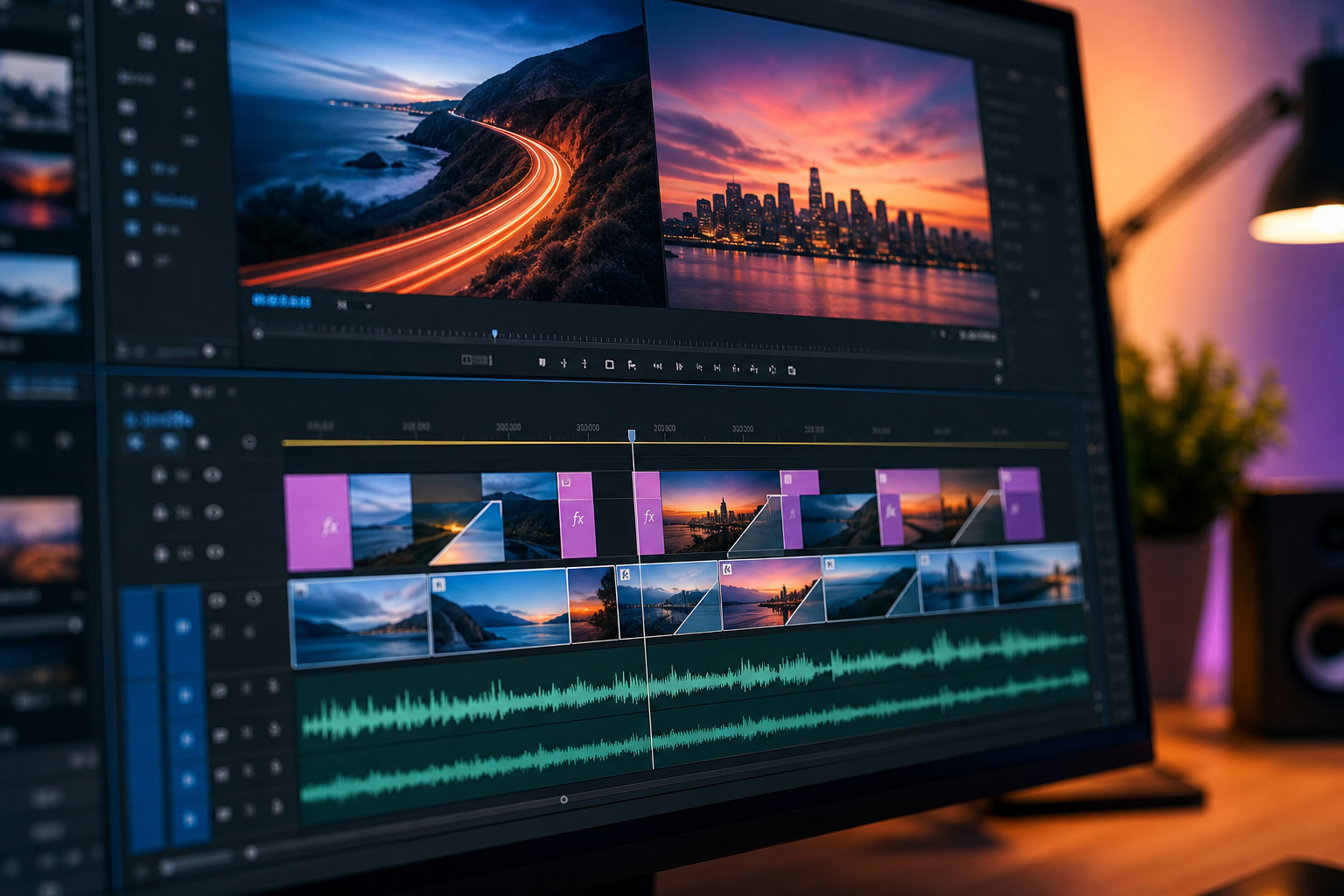
You can easily modify the length of a transition by clicking and dragging its edges on the timeline. More granular control over parameters like direction, border, and anti-aliasing is available within the Effects Controls panel, offering endless creative possibilities.
Beyond the Basics: Advanced Techniques and Creative Applications
While default transitions are useful, true mastery comes from manipulating them creatively. Understanding how to keyframe transitions, layer effects, and even create custom transitions elevates your work from good to exceptional.
Consider the emotional impact of different transitions. A quick cut creates urgency, a smooth dissolve suggests passage of time, and a dramatic wipe can signify a new chapter. Each choice is a deliberate narrative decision.
Leveraging Keyframes for Dynamic Transitions
Keyframing allows you to animate properties over time, giving you unparalleled control over your Premiere Pro transitions. This technique is particularly powerful for creating unique, dynamic effects that go beyond standard presets.
By setting keyframes for transition parameters like opacity, position, or scale, you can design custom fades, pushes, or even complex graphic animations. This skill is highly valued by Adobe Certified Professionals.
Using Adjustment Layers for Global Effects
Adjustment layers in Premiere Pro act like transparent overlays to which you can apply effects, including transitions. Any effect applied to an adjustment layer will affect all tracks below it, making it ideal for consistent visual styles or complex stacked transitions.
This method saves time and ensures uniformity, especially in projects requiring multiple similar transitions or color grading effects. It's an essential workflow hack for efficient post-production.
Sound Design: The Unsung Hero of Transitions
A visually stunning transition can fall flat without complementary audio. Sound effects (SFX) are crucial for enhancing the impact and realism of your video transitions. A subtle whoosh or a dramatic thud can significantly elevate the viewer's experience.
Integrating sound design into your transition workflow is a hallmark of professional video editing. It creates a multi-sensory experience, making your portfolio pieces more immersive and memorable.
Expert Tips for Crafting a Standout Portfolio
Your ability to effectively use Premiere Pro transitions is a clear indicator of your editing prowess. Potential employers and clients look for creators who understand not just the mechanics, but also the artistry of video production.
Showcasing a diverse range of transition applications in your portfolio highlights versatility. From corporate explainer videos to cinematic short films, demonstrating adaptable skills opens up more career pathways. Attend our upcoming workshops to learn more.
Consistency and Purposeful Application
The best transitions are those that serve the story without drawing undue attention to themselves. Strive for consistency in your editing style and ensure every transition has a clear narrative purpose. Avoid overusing flashy effects.
A well-curated portfolio demonstrates judicious use of effects, emphasizing your storytelling capabilities over mere technical execution. This thoughtful approach resonates deeply with creative directors and recruiters.
Staying Current with Industry Trends
The world of video editing is constantly evolving. Keep an eye on new Premiere Pro features, plugin developments, and emerging creative trends in transition design. Platforms like YouTube and industry blogs are great resources.
Continual learning ensures your skills remain sharp and relevant, keeping your portfolio fresh and competitive. Creative Nation Academy is dedicated to providing cutting-edge education, including advanced AI tools for creatives.
Key Takeaways
- Mastering Premiere Pro transitions is critical for professional video editing and career growth.
- Basic application involves dragging from the Effects panel and adjusting in Effects Controls.
- Advanced techniques like keyframing and adjustment layers unlock complex, custom effects.
- Effective sound design is essential for enhancing the impact of visual transitions.
- Thoughtful and purposeful use of transitions elevates your portfolio and demonstrates storytelling skill.
- Staying updated on Premiere Pro features and industry trends is vital for long-term success.
Conclusion: Your Path to Professional Video Editing
The journey to becoming a proficient video editor is continuous, and mastering Premiere Pro transitions is a significant milestone. It's about more than just adding effects; it's about crafting narratives that resonate and visually captivate your audience.
At Creative Nation Academy, we empower you to not only learn the tools but to understand the strategic impact of your creative choices. By refining your transition skills, you're not just enhancing videos; you're building a foundation for a thriving creative career, ready to contribute compelling content to any project. Ready to take the next step? Explore our creative careers blog for more insights.
Frequently asked questions
- What are the most commonly used transitions in Premiere Pro?
- The most commonly used transitions include 'Cross Dissolve' for smooth fades, 'Dip to Black/White' for dramatic scene changes, and 'Wipe' or 'Push' for more abrupt or stylized transitions. Many editors also use 'Film Dissolve' for a classic look. The best choice always depends on the video's narrative and desired mood.
- Can I create custom transitions in Premiere Pro?
- Yes, absolutely! While Premiere Pro offers a wide range of built-in transitions, you can create custom effects by combining standard effects, using keyframes to animate properties like position, scale, and opacity, and even applying effects to adjustment layers. This allows for unique visual storytelling specific to your project's needs.
- How do transitions impact a video's narrative and pace?
- Transitions play a crucial role in controlling a video's pace and narrative flow. Quick cuts create urgency and energy, while slow dissolves can suggest the passage of time or a reflective mood. Wipes or pushes can signal a shift in location or topic. Each transition subtly guides the viewer's perception, shaping their emotional response and understanding of the story.
- What's the difference between video transitions and video effects?
- Video transitions are specifically designed to bridge two clips or scenes, creating a smooth or stylized connection between them. They are applied at the cut point. Video effects, on the other hand, are applied to individual clips (or adjustment layers) to alter their appearance, such as color correction, stylization, or distortion, and can be used throughout a clip's duration, not just at its beginning or end.